

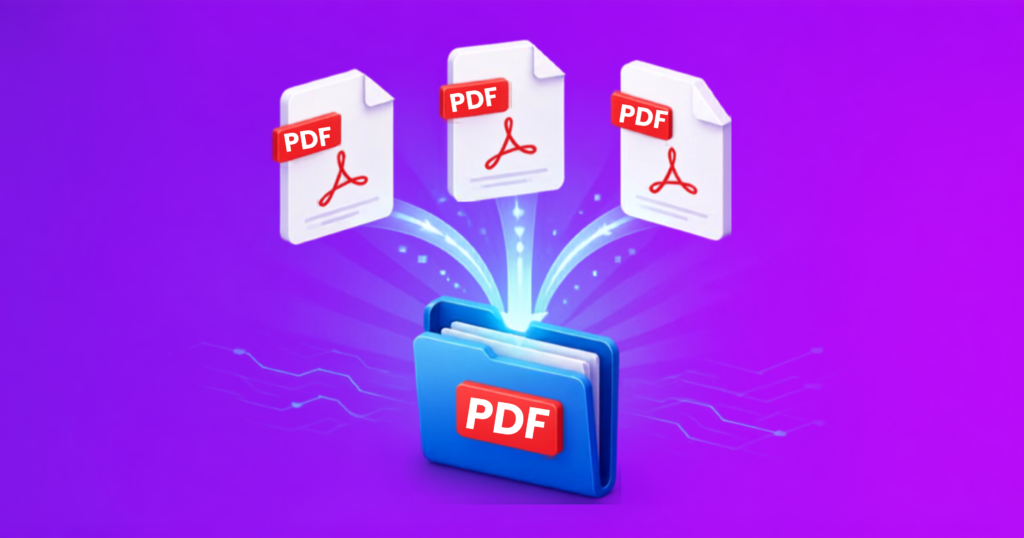
The fastest way to merge PDF files for free is to use a browser-based tool: upload your files, drag
them into order, hit merge, and download the combined document. No software install, no account,
no watermark stamped across your pages. Once your files are actually ready, the whole thing takes
maybe 30-40 seconds.
Sounds simple. Mostly is. But a few things trip people up — files uploading in the wrong order
without you noticing, a “free” tool that quietly caps you at three pages, or that sinking moment when
you open the finished file and there’s a stranger’s logo stamped across every single page. Below is
the actual process, plus a couple of red flags to watch for before you hand any random website your
files.
1. Why People Need to Merge PDFs in the First Place
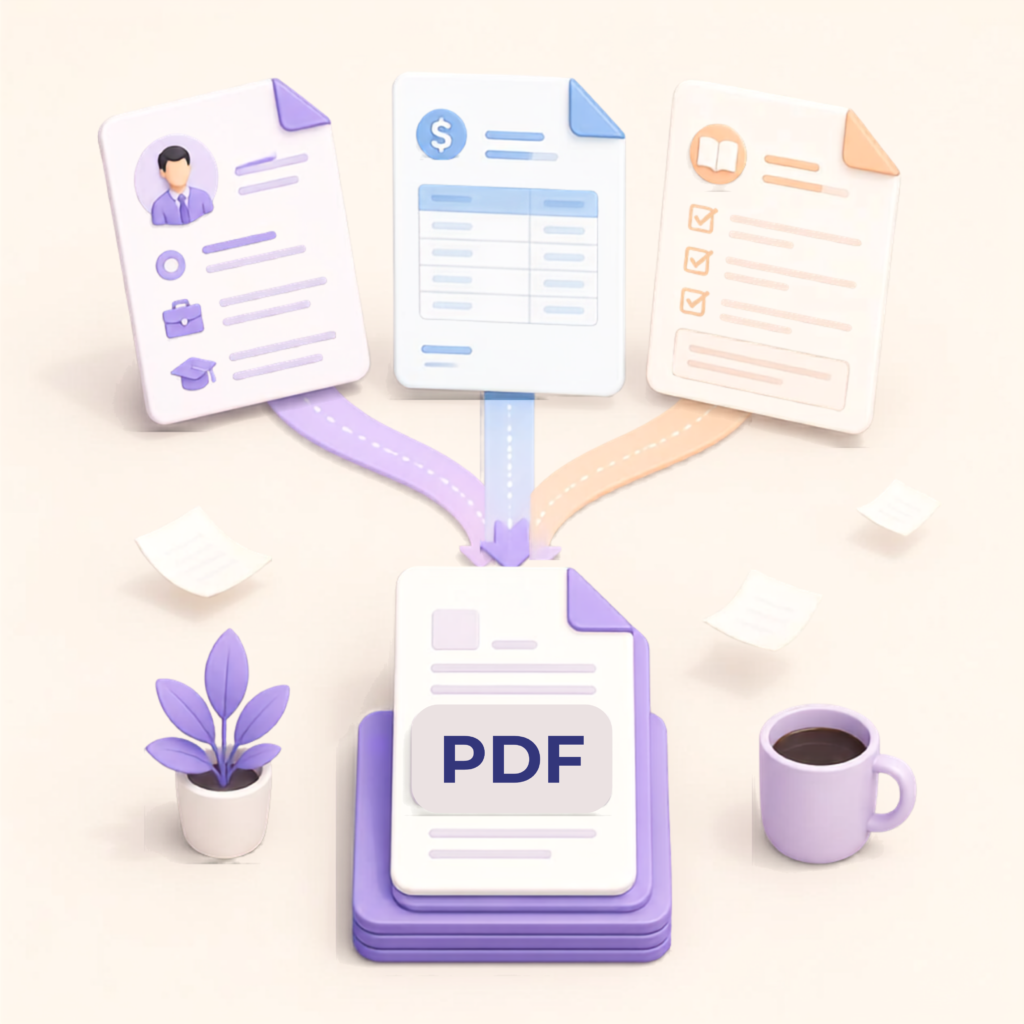
Usually it’s not just one document. Maybe it’s a student stapling together six scanned homework
pages before a submission deadline. A freelancer bundling an invoice, a signed contract, and a
receipt into one file so a client doesn’t have to hunt through three separate email attachments. Or
someone job-hunting who wants their resume, cover letter, and portfolio to land as a single tidy PDF
instead of three files a hiring manager might open out of order — or skip entirely.
Different reasons, same goal: one file, correctly ordered, that opens the same way whether it’s
checked on a laptop, a phone, or printed out at a library kiosk.
2. How to Merge PDF Files in Four Steps
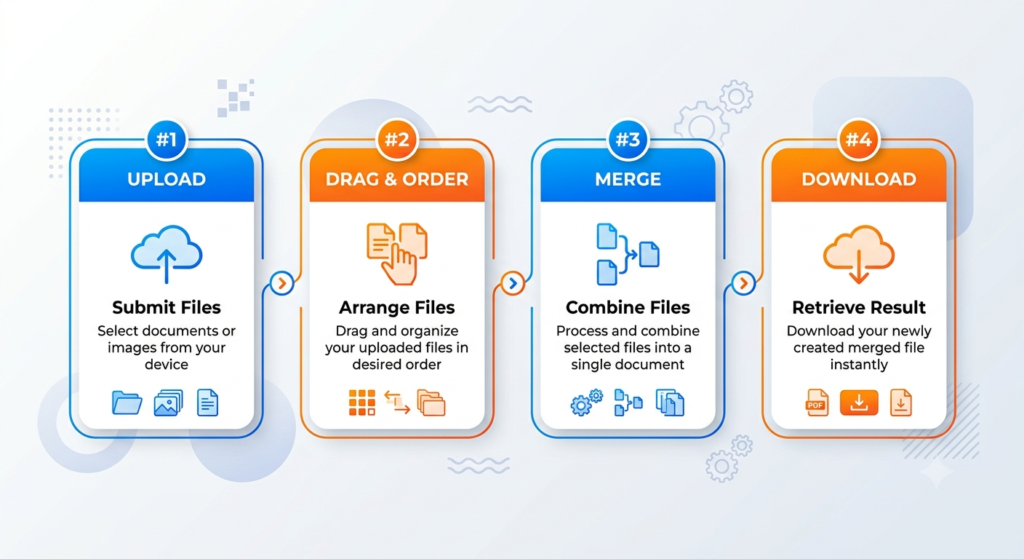
Get your files onto the page. Most tools let you either drop them straight onto the upload box or
click through your folders the old-fashioned way. Either works — and unlike some converters, a
decent merger won’t make you add files one at a time like you’re filling out a form from 2010.
Fix the order before you regret it. Here’s the step almost everyone skips and then pays for later:
whatever sequence you dropped your files in is rarely the sequence you actually want in the finished
PDF. Drag the thumbnails around until they’re right — do this before merging, because reordering
pages after the fact is a much bigger headache.
Merge. One click, and the tool stitches the pages together into a single document while keeping the
original formatting, fonts, and image quality intact.
Download. Your combined PDF should be ready in seconds. If the tool asks you to sign up or pay
before letting you download, that’s your sign to look elsewhere.
3. Do You Actually Need Adobe Acrobat?

Honestly? No. Acrobat is a solid tool once you’re doing heavier editing, redacting sensitive text, or
building fillable forms — but paying a monthly subscription just to stick three PDFs together is
overkill, a bit like renting a moving truck to carry one box across the street. A decent browser-based
merger does the actual merging just as well, for free, in about the time it takes Acrobat to finish
loading. Save the paid subscription for the day you actually need its heavier features.
4. What Separates a Real Free Tool From a Fake One
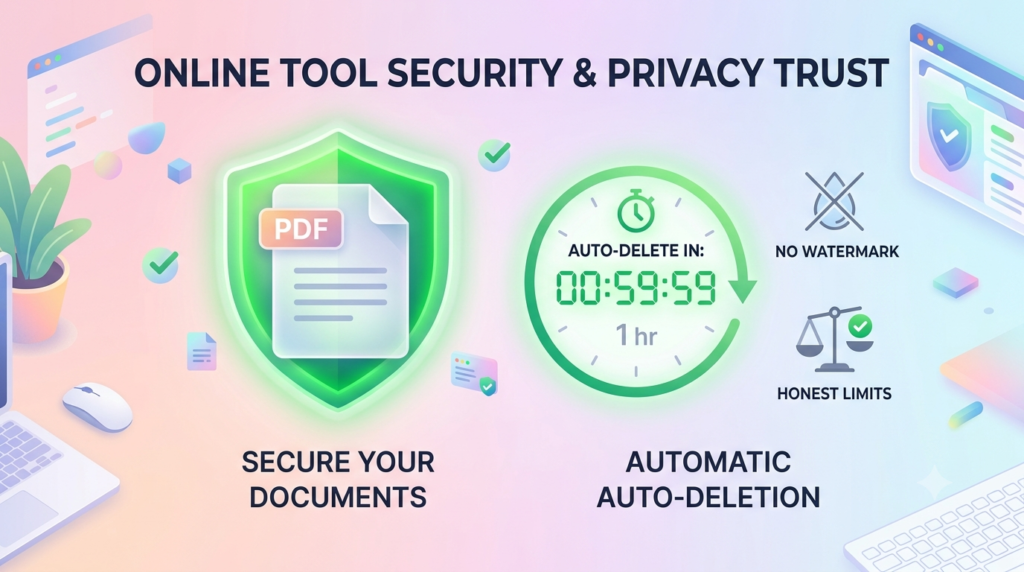
Not every site that slaps “100% free” on its homepage means the same thing by it. Three things
separate the tools that’ll actually serve you from the ones that’ll waste ten minutes of your afternoon:
No watermark on the output. Some tools brand your merged file with their own logo unless you
upgrade. Read the fine print, or just try it once with a throwaway file first.
A real page or file limit, not a hidden one. Some tools cap you at a handful of pages before
quietly asking for payment. Better ones state their limits upfront.
What happens to your files after you leave the page. This is the one people forget to think about.
A good tool wipes your uploads off its servers within an hour or so of processing them — some even
show a countdown timer so you can see it happening. A sketchy one just… doesn’t say. No mention
of storage, no mention of deletion, nothing in a privacy page you can actually find. If you’re merging
a tax form, a signed lease, or anything with someone’s bank details on it, that silence is the one
thing that should make you close the tab.
5. Common Mistakes to Avoid
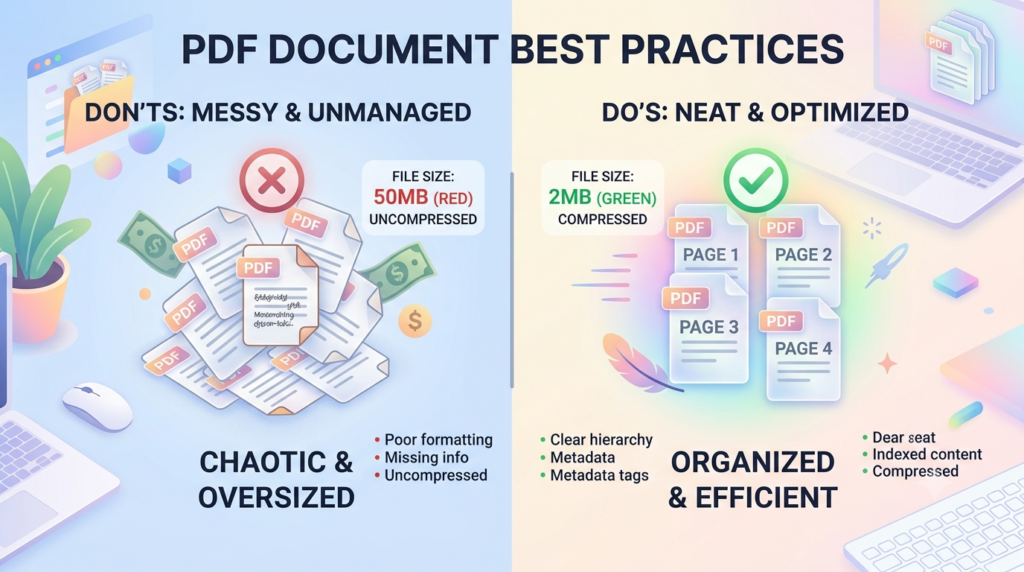
Uploading pages out of order and only catching it after the file’s already merged. It happens more
than you’d think — always double-check the thumbnail order before hitting merge, not after.
Merging a stack of huge, unoptimized scans and then wondering why the final PDF is 40MB and
bouncing off a client’s inbox. If size matters for email, compress each file first, then merge.
Assuming “free” means free all the way through. Plenty of tools let you merge for free and then
paywall the actual download button — annoying, and avoidable if you test a new tool with a
throwaway file first.
Hitting send with the file still named “merged.pdf” or “merged(3).pdf.” Rename it to something a
client would actually recognize before it lands in their inbox
6. Try It Yourself
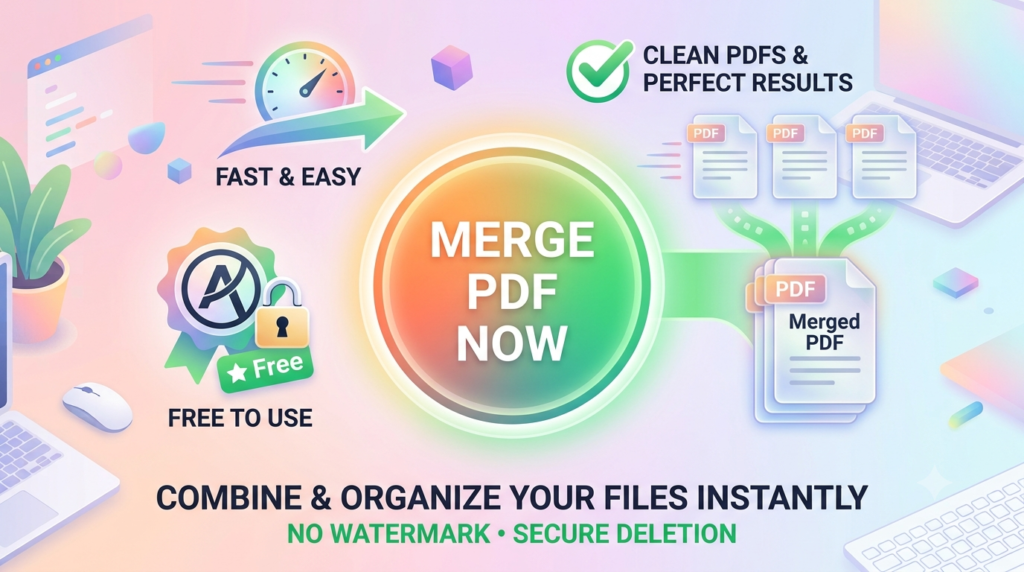
If you’d rather skip the research and just get it done, our free PDF merge tool combines your files in
your browser with no signup and no watermark
7. Frequently Asked Questions
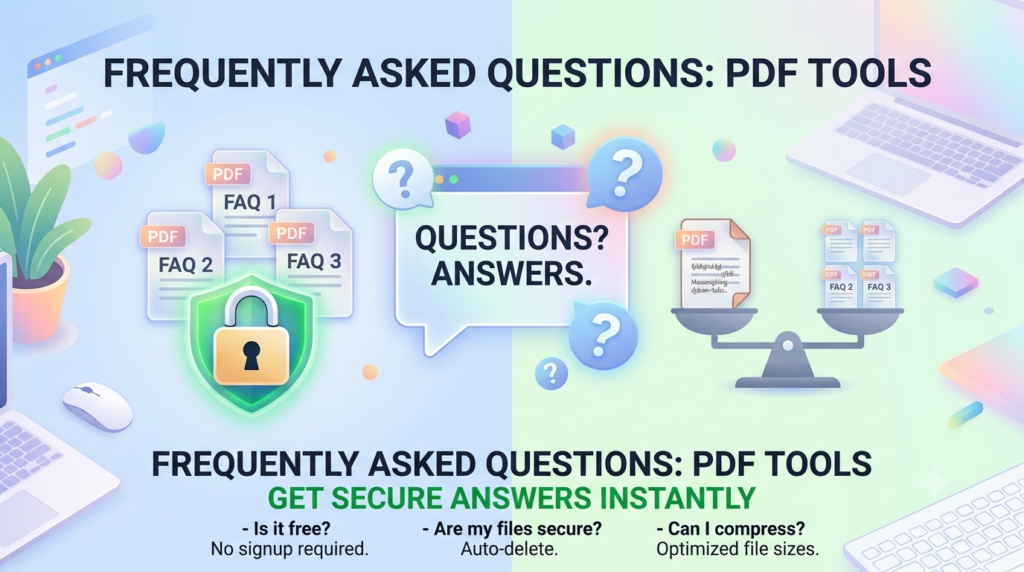
Online merging vs. desktop software — which is actually safer?
For most everyday files, online tools are fine, and honestly more convenient since there’s nothing to
install. The one rule worth following: check that the tool actually states what it does with your upload
once processing finishes. If a site is vague or silent about that, keep your tax documents and ID
scans on desktop software instead — save the browser tools for report cards, meeting notes, and
the stuff that wouldn’t matter if a stranger saw it.
Does merging degrade the pages at all — blur, compression, anything?
It shouldn’t, and if it does, that tool is cutting corners somewhere. A properly built merger stitches
pages together as-is; it doesn’t re-encode images or flatten text in the process. Your merged file
should look like a photocopy of the originals stapled together, not a re-scan of them.
What if my files aren’t all the same page size — some A4, some US Letter?
That’s fine, and more common than you’d expect since scanners and phone-scanning apps default
differently depending on region. Each page keeps its own original dimensions inside the merged file.
You’ll end up with a document where page 3 might be a hair wider than page 4, but nothing gets
stretched, cropped, or forced to match.
Is there a cap on how many files I can throw into one merge?
Depends entirely on which tool you land on. Some free versions stop you around the 20-file mark,
others cap by total megabytes instead of file count. If you’re a student merging four homework
scans, you’ll never notice a limit exists. If you’re an office worker batching thirty scanned invoices at
once, check the fine print first — or just split the job into two merges.